
Google Review QR Code: What It Is And How To Set One Up
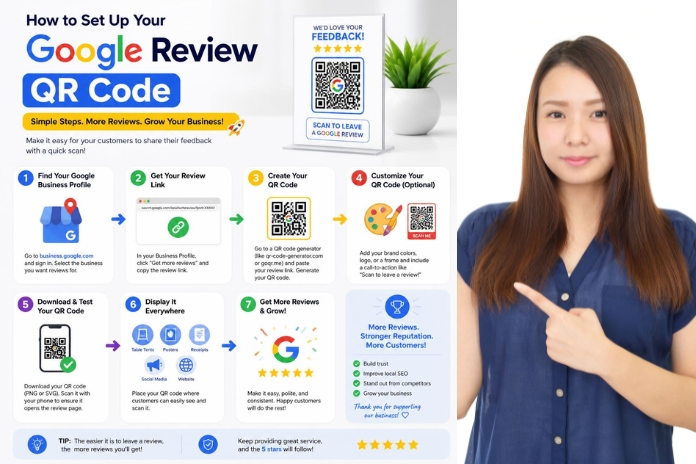
A Google review QR code is just your business’s review link, turned into something a phone camera can scan. Instead of telling a customer, “Search us on Google and leave a review,” which is really four or five steps before they’ve typed a word, you hand them a code, they scan it, and they land directly on your review form. That’s the whole idea.
How to Get Your Google Review Link
You don’t need a third-party tool for this part. Google provides the link directly through your Business Profile.
- Open your Google Business Profile on a computer.
- Select Read reviews, then Get more reviews.
- Google will provide a short review link and a QR code.
- Copy the link or download the QR code.
Google currently says that review QR codes can be generated on a computer browser, not on mobile devices. You can right-click the QR code and save it as an image.
How to Create a Branded Google Review QR Code?
If you want something that matches your business’s look – your colours, a logo in the centre, a specific shape – paste that same review link into a free QR code generator instead of using Google’s default version. The process is the same everywhere: paste the link, customise the design, and download it as a high-resolution image for printing.
One step people skip and shouldn’t: test the code with a couple of different phones before you print anything. A code that looks fine on screen can scan to the wrong page or not scan at all if the contrast is too low or the logo covers too much of the centre.
Where to Place Your Google Review QR Code?
This is the part most guides gloss over. The code itself is the easy 5% of the job. What actually determines whether it gets scanned is the moment you attach it to.
A code taped to the front door gets ignored — customers are heads-down, focused on leaving. A code handed over at the exact moment someone says “that was great,” on a receipt, a table tent, or a card the server hands over with the check, gets scanned. The same code and print job can yield wildly different results depending on where and when they are used.
A few spots that tend to work:
- On the receipt, right after checkout
- On a small table tent or counter card, near where people actually pause
- In a follow-up text or email sent an hour or two after the visit, when the experience is still fresh
Google Review Incentive Rules You Need to Know?
Google prohibits offering incentives — discounts, freebies, entries into a giveaway — in exchange for a review, and it can remove any reviews it identifies as incentivised. It’s tempting to sweeten the ask, but it’s not worth the risk of losing reviews you already earned. The code should make it easier to leave a review, not make the review itself something you pay for.
Do Google Review QR Codes Actually Increase Reviews?
Reviews are important for local visibility — Google’s local ranking factors rely heavily on review volume and rating, and most consumers say they read reviews before choosing a local business. Businesses that actively hand customers a direct link or code tend to report meaningfully more reviews than ones that just wait and hope people remember to leave one on their own. QR codes specifically have also gotten easier to rely on — scan volume has been climbing year over year as more people default to just pointing their camera at a code instead of typing anything.
None of that means a QR code fixes a weak review count on its own. It removes the friction of finding your review page. It doesn’t replace actually asking, and it definitely doesn’t replace giving someone a reason to want to leave one in the first place.
The Bottom Line
Getting the code itself takes about two minutes, either straight from your Google Business Profile or through a free generator using the same link. The part worth spending real time on is where and when you hand it to someone — that’s what decides whether it sits on a laminated sign nobody scans or actually turns into reviews.
